One click, whole workflow
Recipes are here. Package a whole workflow and run it in one click
Explore recipesOne click, whole workflow
Recipes are here. Package a whole workflow and run it in one click
Explore recipesRunway Aleph 2.0 edits footage you already have. This guide covers the verb-plus-target prompt pattern, each edit type with Runway's own example prompts, how to steer a whole clip with one edited frame, the settings in Fuser and what an edit costs.
All guides · Runway Aleph in Fuser
Quick answer: Runway Aleph 2.0 is a video-to-video editing model. You give it a clip and describe one change, such as "change the season to winter" or "remove the items on the wall behind her", and it applies that change across the clip while keeping the rest of the shot. Runway's advice is to start every prompt with an action verb (add, remove, change, replace, re-light, re-style) followed by the result you want (Runway prompting guide). For edits that are hard to describe, edit one frame with an image model and give Aleph that frame as a reference. It accepts up to 30 seconds of footage (Runway) and is billed per second of video (Runway API pricing).
Most video models make a new clip from a prompt or a still. Aleph starts from footage that already exists and changes part of it. Runway describes it as an in-context editing model that changes "only what you ask for" and keeps the background, lighting and surrounding details as they were (Runway prompting guide).
That makes it the model to reach for when the shot is right but something in it is wrong: the product is the old colour, the weather doesn't match the next scene, there's a sign in the background you can't use, or the client wants the same take in a different look. Runway lists footage of up to 30 seconds at 1080p and edits that carry across the shots of a multi-cut video (Runway).
The Runway Aleph node in Fuser runs Aleph 2.0 through Runway's API (model ID aleph2).
Runway says there are no strict rules, but that simple, precise prompts work best, and that an effective prompt has two parts (Runway prompting guide):
An action verb for the scope of the change: add, remove, change, replace, re-light, re-style.
The target: what the result should look like.
Runway's own example is "Change the outfit and bag to soft yellow". Runway recommends starting with that short form and adding detail only as needed: because Aleph is built to change only what you ask for and keep everything else, it says targeted, specific language gives the best results. In practice that means naming the one thing to change rather than describing the whole scene again.
Runway's guide and product page group Aleph's edits into the jobs below. The quoted prompts are Runway's own examples (prompting guide, product page).
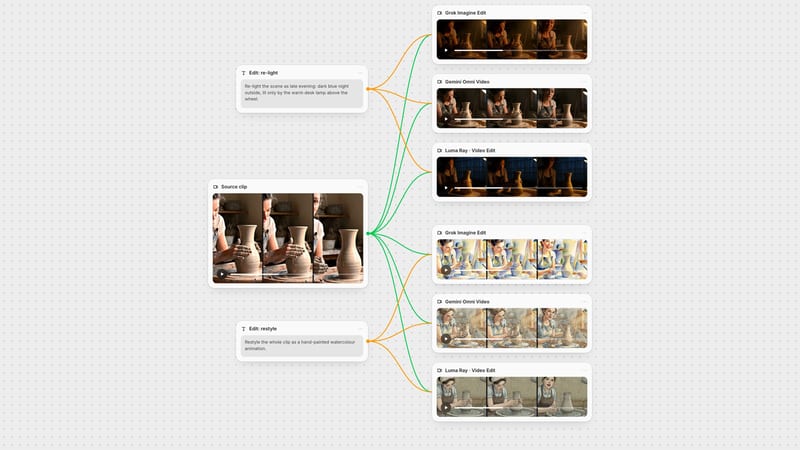
Restyle. Apply a film look, art style or aesthetic to the whole clip: "1920s silent era film", "Make it dark anime style".
Relight. Change the mood of the light while keeping the shot: "Chiaroscuro lighting". Runway suggests describing the light source, its direction and its quality.
Weather, season and time of day: "heavy overcast and raining", "Change the season to winter".
Replace an object or subject. Say what to swap and what it becomes: "Swap for black leather clutch with gold buckle", "Make the sneakers red".
Wardrobe: "Change outfit to bright yellow fur coat".
Add or remove. "Add graffiti on the wall behind him", "Remove the items on the wall behind her". Both of Runway's examples say where in the frame the change happens, not only what it is.
Change the background while keeping the subject and foreground: "change background to ancient city ruins".
A new framing of the same moment: "Tighter shot on the product, same moment". This asks Aleph for a different camera view of what is already in the clip.
Runway says many of these can be combined in a single generation.
Aleph 2.0's other input is an image. Runway's summary of the model is "Edit one frame and Aleph 2.0 modifies the rest of your video to match" (Runway). In Runway's API these images are called keyframes: up to five guidance images, each pinned to a time in the input video (Runway API).
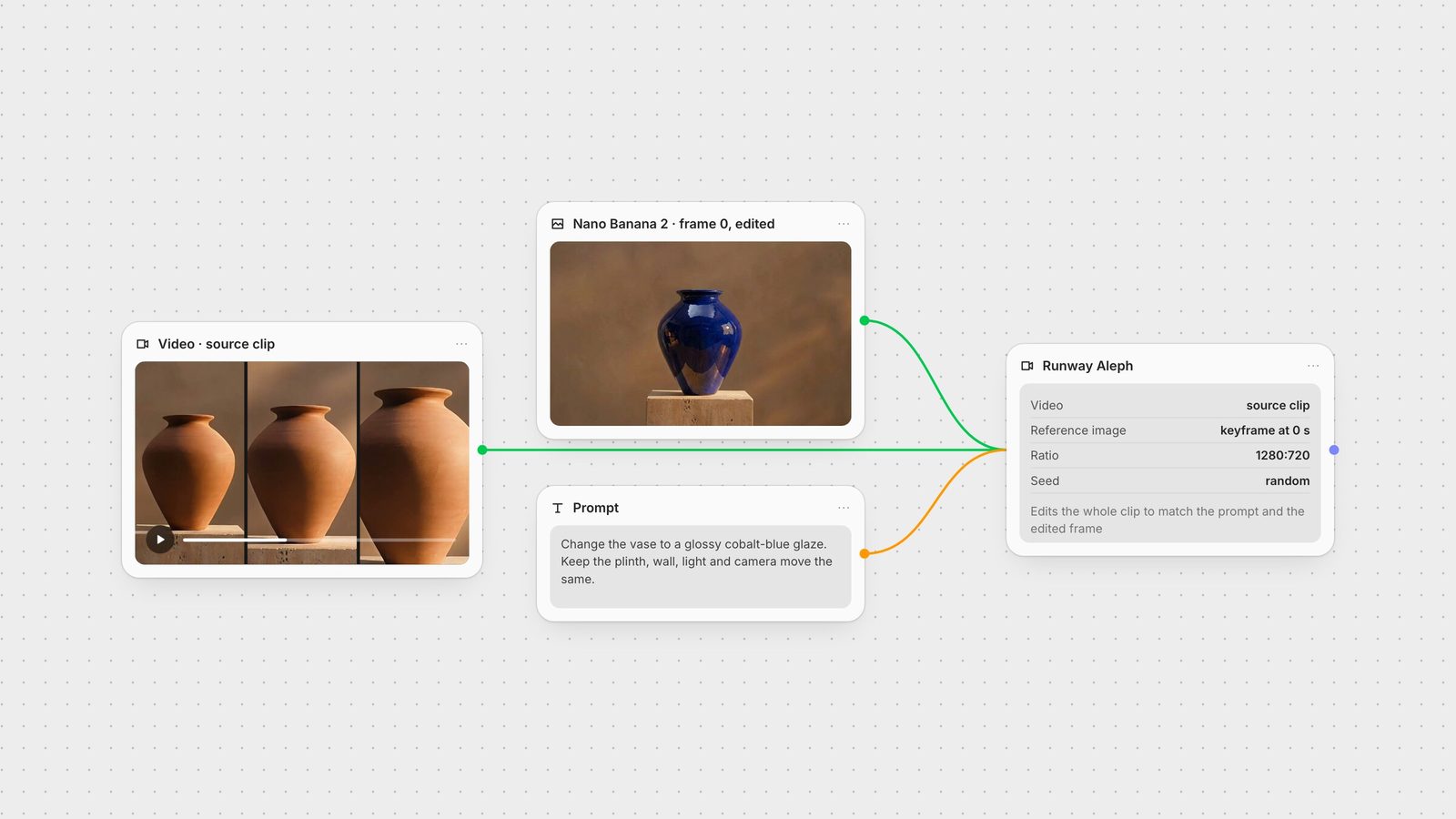
In Fuser, the Aleph node has one Reference Image input, and Fuser sends that image to Runway as a keyframe at 0 seconds, the first frame of the clip. So the workflow is:
Export the first frame of your source clip as an image.
Edit that frame with an image model. Nano Banana or FLUX Kontext both handle "change this, keep everything else" edits well; see the Nano Banana prompt guide and the FLUX Kontext editing guide.
Connect the clip to Video, the edited frame to Reference Image, and write a short prompt that names the same change.
We ran step 2 on a 6-second push-in on a terracotta vase with one Nano Banana 2 prompt: "Change the vase to a glossy cobalt-blue glaze. Keep the vase shape, the travertine plinth, the wall, the light and the framing exactly the same." The plinth, wall texture and warm side light came through unchanged and the vase kept its shape and position. That matters, because the edited frame should line up with the real frame 0: check the two side by side before you spend a video generation on it, and redo the image edit if the subject has moved or the crop has changed.
A reference frame is most useful when the change is visual and hard to put in words: an exact colour, a specific product, a logo placement, a look you've already approved as a still. For changes that are easy to name, Runway's short prompts show a prompt can describe them directly.
Runway's own editor also offers an optional motion prompt next to a keyframe, for motion that exists in neither the keyframe nor the source clip. Its example is "fire begins to spread up the trees" (Runway prompting guide). Runway notes you usually won't need it. Fuser's node has a single Prompt field, so put any such motion description there.
The Runway Aleph node has three inputs and two controls:
Prompt: required, up to 1,000 characters.
Video: the clip to edit.
Reference Image: optional; sent as a keyframe at 0 seconds, as described above.
Ratio: 1280:720 by default, with 720:1280, 1104:832, 960:960, 832:1104, 1584:672, 848:480 and 640:480. Runway's current API reference marks the ratio field as deprecated for Aleph 2.0 (Runway API), so shoot or crop the source to the frame you want rather than relying on this setting to reframe it.
Seed: random by default. Reuse a seed to get a similar result from the same inputs; change it for a different take.
Some Aleph 2.0 API options are not in Fuser's node: more than one keyframe, keyframes at other times, edit windows that limit a change to part of the clip, expanding the frame to a new aspect ratio, and ProRes or PNG-sequence output (Runway API, Runway models). Fuser returns the default H.264 MP4.
Price: Runway bills Aleph 2.0 per second of video, with a 2-second minimum per generation (Runway API pricing). A 10-second clip costs twice as much as a 5-second clip. In Fuser, the node's cost estimate scales with the length of the input clip in the same way.
Length: up to 30 seconds of footage, at up to 1080p (Runway). Because billing is per second, trim the source to the part you need before editing.
No native HDR: Runway says Aleph 2.0 doesn't deliver HDR (Runway models).
Given the per-second price, test an edit on a short trim first. Once the prompt and reference frame work on 3 seconds, run the full clip.
Making a new shot rather than changing an existing one: an image-to-video model. See best image-to-video models.
Putting a filmed performance on a character: Runway Act-Two.
Making a clip longer: see how to extend AI video length.
Sharper or larger output after the edit: a video upscaler such as SeedVR or Topaz; compare them in best AI upscalers.
Comparing editing models: best AI video editing models.
On a Fuser canvas, the source clip, the frame edit and the Aleph node sit side by side, so you can try a new reference frame or a new prompt against the same clip without re-uploading anything. Keep the approved reference frame in place for every shot in the sequence so the edit stays consistent, then chain the result into an upscaler or VEED subtitles. The chaining guide covers the pattern in more depth.
Example prompts are Runway's own, from its Aleph 2.0 prompting guide and product page.
| Edit | Runway's example prompt | Tip |
|---|---|---|
| Aleph 2.0 edits | ||
| Restyle | "1920s silent era film" | For a look you've already approved as a still, edit frame 0 to match and use it as the reference frame. |
| Relight | "Chiaroscuro lighting" | Runway suggests describing the light source, direction and quality. |
| Weather, season, time | "Change the season to winter" | Describe the conditions you want; Aleph updates the atmosphere across the clip. |
| Replace an object | "Swap for black leather clutch with gold buckle" | Use an edited first frame when the exact product matters. |
| Add or remove | "Remove the items on the wall behind her" | Say where in the frame the change happens, as Runway's examples do. |
| Change the background | "change background to ancient city ruins" | Runway says subject and foreground are kept; describe the new setting. |
| New framing | "Tighter shot on the product, same moment" | Asks for a new camera view of the same moment. |
Aleph 2.0 is Runway's video-to-video editing model. It takes an existing clip and a text prompt, and optionally an edited frame, and changes only what you describe while keeping the rest of the shot.
Start with an action verb such as add, remove, change, replace, re-light or re-style, then describe the result, for example "Change the outfit and bag to soft yellow". Keep it short and name only the change.
Runway lists up to 30 seconds of footage at up to 1080p. Pricing is per second, so trim the clip to the part you need before editing.
On Runway's API it is billed per second of video with a 2-second minimum, so a 10-second edit costs twice as much as a 5-second one.
Yes. In Fuser, connect an image to the Reference Image input and it is sent to Runway as a keyframe on the first frame. This follows Runway's own workflow for Aleph 2.0: edit one frame, and the model changes the rest of the clip to match.
Aleph edits the content of an existing clip: objects, light, style, weather or background. Act-Two transfers a filmed human performance onto a character image or video.
Put your clip, a reference frame and Aleph on one canvas.